Reversing a Prescription Filled for the Wrong Patient
Wrong Patient is a convenient way of moving a new prescription from an incorrect Patient Profile to the correct one. The prescription is cancelled, removed from Profile, and entered on the correct Profile for you to fill or place on hold. The prescription number that was removed from Profile is recorded in the Patient Folder History tab as a comment.

In Ontario, NMS prescriptions do not get removed from Profile, as a record must be kept for the NMS transmission. Instead, the prescription is placed on hold with all repeats removed and Discontinued.
Wrong Patient is available for new prescriptions with a status of Complete, Hold, or Amend. It cannot be used for PrescribeIT® prescriptions. Wrong Patient is not available in British Columbia or DIS provinces.
To reverse a prescription filled for the wrong patient:
-
Select Correct from the Patient Profile, Workbench, or any Workflow window after Data Entry.
-
If Correct is selected from the Workbench, enter the patient's name or prescription number.
Multiple prescription numbers can be separated by a forward slash (/).
-
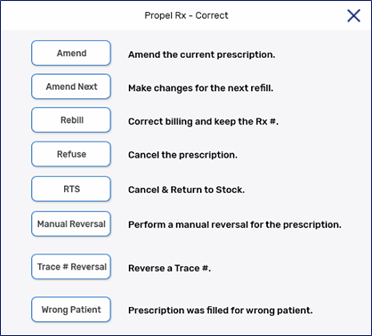
In the Correct window, select Wrong Patient.
-
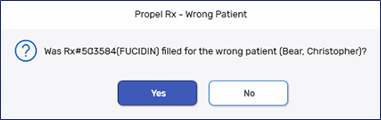
A prompt appears asking you to confirm if the prescription was filled for the wrong patient. Select Yes.
- Search for the correct patient and select OK.
- Review Rx Detail and select Fill.